
What One Page Load Can Set in Motion
No two sites behave exactly alike, but most commercial pages lean on the same four ingredients. Each is small on its own. Together, and multiplied across every tab you leave open, they add up.
Third-party scripts
Code from ad networks and analytics providers runs alongside the page you came for, often on timers of its own that keep firing while you read.
Tracking beacons
Tiny requests report scrolls, clicks and impressions back to remote servers.
Autoplay media
Video ads and animated banners keep decoding hardware busy, even when muted.
Ad refresh cycles
Some placements swap in new ads at intervals, restarting the whole download-and-render routine without any input from you.
Why Your Processor Rarely Gets to Rest
Modern chips are remarkably frugal when they are idle. Laptops and phones save power by slipping into low-power states between bursts of work, sometimes for only fractions of a second at a time. A page full of busy scripts keeps interrupting that rest. Every timer that fires, every animation frame and every tracker check-in nudges the processor awake again.
Browser makers are well aware of this. Beginning with Chrome 87, Google started limiting how often JavaScript timers in background tabs can wake up, holding many of them to roughly once per minute. The Chromium team reported that this change alone cut CPU usage in those tabs by up to five times, which says a lot about how much code had been running in tabs nobody was looking at.
A quick tab audit. If you routinely keep twenty or thirty tabs open, the pages you have forgotten about still draw on your battery. Built-in throttling softens the effect, but it cannot fully stop what a page is built to keep doing.


Autoplay Video Is the Heaviest Passenger
Of everything a page can load, video is usually the most demanding. Decoding a stream keeps dedicated media hardware, and often the graphics processor, working continuously while a steady flow of data arrives over the network. When that video is an ad you never chose to watch, all of that effort buys you nothing.
Google's own figures show how lopsided the problem can be. When the Chrome team introduced its heavy ad intervention in 2020, it set limits for any ad that uses more than 4 MB of network data, 15 seconds of CPU time in any 30-second window, or 60 seconds of CPU time in total. Only a sliver of ads crossed those lines, yet that small group accounted for a large slice of all ad resource use.
of ads exceeded Chrome's heavy-ad thresholds
of the network data used by ads came from that group
of all ad CPU usage came from the same group
Source: Chromium Blog, "Protecting against resource-heavy ads in Chrome," May 2020.
Chrome now unloads ads that break those limits, but ads that stay just under the line still play, refresh and report back. Lighter than "heavy" is not the same thing as light.
Your Wi-Fi and Cellular Radios Pay a Price Too
Processing is only part of the bill. Every request a page makes travels over Wi-Fi or a cellular connection, and the radio hardware that carries it draws real power whenever it is active. On cellular networks especially, the radio does not drop back to its low-power state the instant a transfer ends. It lingers in a short "tail" period, ready for more traffic.
That design makes sense for genuine browsing, but it works against you when a page sends a steady trickle of small ad and tracking requests, because each little burst can pull the radio back up before it has settled. A weak signal makes things worse, since the phone has to work harder to hold the connection. Fewer unnecessary requests give the radio more chances to rest and leave more of your monthly data for content you actually chose.
Heat, Charge Cycles and Long-Term Battery Health
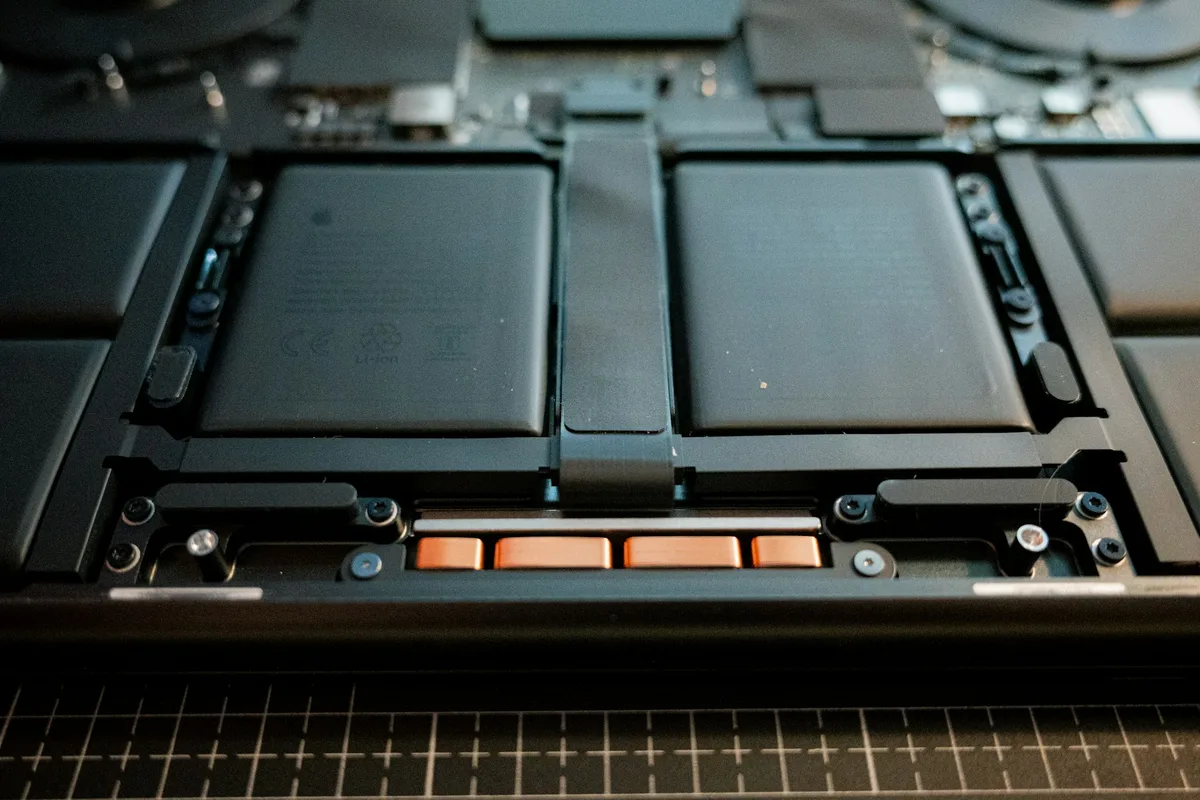
A device that is working hard runs warm, and warmth matters to lithium-ion batteries well beyond the moment. Apple, for example, describes 16 to 22 °C (62 to 72 °F) as the ideal ambient range for its devices, and warns that using or charging them in ambient heat above 35 °C (95 °F) can permanently reduce battery capacity.
Browsing alone will not push a device to those extremes, but sustained load adds its own heat on top of a sunny window seat or a laptop resting on a sofa cushion. Less needless work means less heat and fewer trips to the charger, and over months, fewer charge cycles. It is one of the quieter reasons to keep your pages lean.
What Independent Research Has Measured
It is fair to ask how much difference blocking web clutter really makes. The honest answer is that it depends on the site, the device and the network. Two published studies give a useful sense of the range.
The Hidden Energy Costs of Web Advertising
R.J.G. Simons and A. Pras compared PC power draw while browsing with and without ads. With ads enabled, consumption rose by an average of 2.5 W, about 3.4% above a 74 W baseline. That is modest on a plugged-in desktop, but it is the same kind of overhead a laptop has to pay from its battery.
Ad Blocking and Mobile Browser Energy
Heitmann, Pirker, Park and Chakraborty measured web pages on a mobile platform with and without blockers. On some sites blocking made no difference; on others it reduced power use by up to around 50%, and certain ad-heavy news pages used roughly twice the power with blockers switched off.
The takeaway is not a single headline number. Ad-light sites will not change much. Ad-heavy sites, particularly those with video and constant refreshes, are where filtering tends to matter most, and those are often the pages people spend the most time on.
A Cluttered Session Versus a Filtered One
Here is how the same afternoon of browsing tends to differ when ads and trackers are left alone compared with when they are filtered out.
| What changes | Unfiltered browsing | Ads and trackers filtered |
|---|---|---|
| Requests per page | Content plus ad, tracker and widget calls | Mostly the content you opened |
| Processor activity | Frequent wake-ups from scripts and timers | More time in low-power idle |
| Autoplay media | Video ads may load and play on their own | Ad video stopped before it downloads |
| Network radio | Pulled awake by repeated small requests | Fewer interruptions between real transfers |
| Mobile data | Shared with material you did not choose | Spent mainly on pages you chose |
| How pages feel | Layout jumps as ads arrive late | Steadier, less cluttered pages |
General comparison only. Actual results depend on your device, browser, network and the sites you visit.
Free Settings Worth Switching On First
Before adding anything new, make use of what your browser and operating system already offer. These steps cost nothing and work well alongside filtering.
-
Turn on your browser's power-saving mode
Chrome's Energy Saver, introduced in late 2022, limits background activity and visual effects such as smooth scrolling and video frame rates when the battery runs low or the device is unplugged. Microsoft Edge has a comparable efficiency mode.
-
Let idle tabs sleep, and close the rest
Use your browser's memory-saving or sleeping-tab feature, and close tabs you are keeping open only "just in case."
-
Use battery saver on long days
Your laptop's or phone's low-power mode trims background work across the whole system. Dimming the screen a little helps too.
-
Keep everything updated
Power-management improvements often arrive quietly in routine browser and operating system updates.
-
Mind the heat
Avoid long sessions with a laptop on soft surfaces that block its vents, or with a phone sitting in direct sun.
Where Total Adblock Fits In
Settings can slow background work down; an ad blocker aims to stop much of it from loading in the first place. Total Adblock is one option built for that job. It runs as an extension in popular desktop browsers, including Chrome, Edge and Safari, and the provider also offers it for mobile devices.
Pop-ups, banners and video ads
Blocks intrusive formats, including autoplay video, before they start downloading.
Third-party trackers and scripts
Stops many of the beacons and scripts that follow you from site to site.
Quicker, calmer pages
With fewer elements competing to load, pages can appear sooner and jump around less.
Less background activity
The provider says reducing ad and tracker activity helps devices last longer between charges.
Risky ad links
Designed to block deceptive ads and links that can lead to phishing or malicious sites.
Your own allow list
Lets you keep acceptable ads on the sites you want to support.
About plans: Total Adblock offers basic ad blocking for free, and its Chrome Web Store listing describes a 7-day trial of premium features. Independent reviewers note that the free tier does not block ads on many of the most popular websites, so check what each plan covers. Paid plans renew automatically unless cancelled; review the current pricing and renewal terms on the provider's site before you subscribe.
Curious how it would work in your browser?
See the supported browsers and devices, and what each plan includes.
Getting Started Takes a Few Minutes
-
Pick your version
Open the provider's page from any button here and choose the edition for your browser or phone.
-
Add it and pin it
Install the extension or app, then pin it to your toolbar so you can see what it filters on each site.
-
Browse normally for a few days
Allow ads on sites you want to support, then compare a typical day's battery use with how it was before.
Results vary from person to person, but trying it on the sites you actually use is the simplest way to see what difference it makes for you.
Sources
- Chromium Blog, "Protecting against resource-heavy ads in Chrome," May 2020. blog.chromium.org
- Chromium Blog, "Tab throttling and more performance improvements in Chrome M87," November 2020. blog.chromium.org
- Google, "New Chrome features to save battery and make browsing smoother," December 2022. blog.google
- Apple, "Batteries: Maximizing Performance." apple.com
- R.J.G. Simons and A. Pras, "The Hidden Energy Costs of Web Advertising," University of Twente. ris.utwente.nl
- N. Heitmann, B. Pirker, S. Park and S. Chakraborty, "Towards Building Better Mobile Web Browsers for Ad Blocking: The Energy Perspective," LCTES 2020. cs.unc.edu